Running an online store requires two things: flexibility and functionality. While WordPress gives you creative freedom to design and publish engaging content, Shopify provides powerful tools for selling online. But what if you could combine both? That’s where Shopify with WordPress integration comes in.
Shopify and WordPress integration allows small business owners to enjoy the best of both worlds: WordPress’s flexibility and Shopify’s eCommerce capabilities.
In this guide, you’ll learn how to use Shopify with WordPress step-by-step. You’ll also discover how this integration can help you boost sales, simplify management, and create a better shopping experience for your customers.
Why Use Shopify with WordPress?
Integrating Shopify with WordPress allows small business owners to manage the online store efficiently while delivering a seamless shopping experience to their customers. Here’s why this setup is so effective.

- Best of Both Worlds: WordPress excels in content creation, SEO optimization, and design control, while Shopify specializes in secure transactions, product management, and order tracking. Together, they help you build a content-rich website that drives sales.
- No Technical Headaches: With Shopify handling hosting, payments, and site security, you can skip the technical maintenance. This means more time to focus on marketing, growth, and customer engagement, rather than worrying about backend issues.
- Seamless Shopping Experience: Using Shopify’s Buy Button or plugin, shoppers can explore products on your WordPress site and checkout securely without leaving the page. This smooth buying process enhances user trust and conversion rates.
- Affordable for Small Businesses: Starting at only $5/month, the Shopify Starter plan provides an affordable way to begin selling online. It’s ideal for small business owners who want eCommerce functionality without a hefty investment.
Start Your Online Store Today
We can help you seamlessly integrate Shopify and WordPress for a user-friendly online store. Launch your products, manage orders, and grow your business effortlessly.
Steps to Use Shopify with WordPress
Here’s a quick step-by-step tutorial on how to set up and connect Shopify with WordPress.
Step 1: Setting Up a Shopify Account
Before connecting Shopify with WordPress, you need to set up your Shopify account. This is where you’ll manage your products, payments, and customer details. Setting up the account correctly ensures a smooth integration later and helps you start selling faster.

- Create Your Shopify Account: Visit Shopify’s website and sign up for a plan. The Shopify Starter plan at just $5/month is ideal for small business owners who already have a WordPress site and only need eCommerce functionality.
- Add Store Details: Once registered, enter your store name, contact information, and preferred currency. These details form the foundation of your online shop.
- Add and Organize Products: Next, upload your product titles, descriptions, images, and pricing. To make navigation easier, group products into collections, such as “New Arrivals” or “Best Sellers.”
- Set Up Payments and Shipping: Configure your payment gateways such as Shopify Payments, PayPal, or Stripe. Then, define your shipping rates and regions to ensure smooth order fulfillment.
- Review Analytics: Finally, explore Shopify’s analytics dashboard to track sales, visitor activity, and conversions. This data helps you make informed decisions as you prepare to integrate your store with WordPress.
Read: Top Ways to Boost Your Agency’s Offerings with White Label Ecommerce Solutions
Step 2: Installing the Shopify Plugin on WordPress
After setting up your Shopify store, the next step is to connect it with your WordPress website. This integration allows you to showcase and sell products directly from your site while managing everything through Shopify.
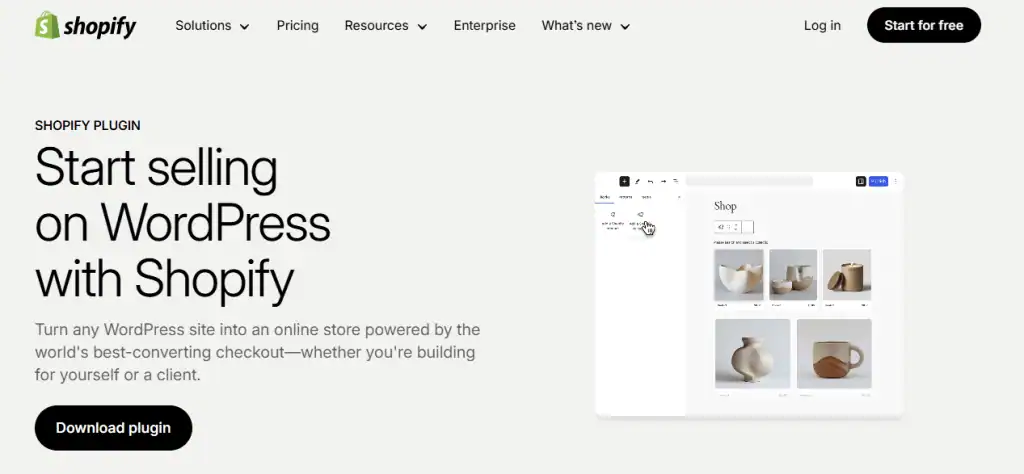
- Install the Shopify Plugin: Log in to your WordPress dashboard and navigate to Plugins ⟶ Add New. Then, search for “Shopify” or “Shopify Buy Button,” install it, and activate the plugin.
- Connect Your Shopify Account: Once activated, open the plugin settings and log in to your Shopify account. This connection links your store data with your WordPress site.
- Configure Display Settings: Next, customize display and checkout settings to match your brand’s layout and style. You can adjust colors, button designs, and layouts for a seamless look.
Pro Tip: Maintain consistent colors and typography across both platforms to strengthen your brand identity and provide a unified customer experience.
Step 3: Creating a Sales Channel with the Shopify Buy Button
The Shopify Buy Button is a powerful tool that connects your Shopify store with your WordPress website. It allows customers to purchase products directly from your site without redirecting them elsewhere, creating a seamless shopping experience.
- Access the Buy Button: In your Shopify dashboard, navigate to Sales Channels ⟶ Buy Button. This is where you create and manage buttons for your products or collections.
- Select Products or Collections: Choose the specific product or collection you want to feature on your WordPress page. This ensures that only relevant items are displayed to your visitors.
- Customize the Button: Adjust the design, colors, layout, and call-to-action text to match your website’s branding and style.
- Embed the Button on WordPress: Copy the generated embed code and paste it into your WordPress page or post using the HTML editor. Visitors can now purchase securely without leaving your site, maintaining a professional and cohesive design.
Check out: Best White Label Web Design Companies for Agencies
Step 4: Displaying Products and Collections on WordPress
Once your Shopify store is connected, you can showcase individual products or entire collections on your WordPress site. Proper display helps attract visitors, improve engagement, and increase sales.
- Single Product Display: Use a Buy Button to feature individual products on pages, blog posts, or landing pages. This allows customers to make quick purchases without having to navigate away from your content.
- Collection Display: For multiple related products, create a Shopify collection embed. Examples include “Gifts for Her” or “Summer Sale,” which help organize products and make browsing easier.
- Optimize Product Listings: Ensure each product includes a high-quality image, a clear title & concise description, a visible price, and an ‘Add to Cart’ or ‘Buy Now’ button.
SEO Tip: Use keyword-rich product titles and meta descriptions to improve search engine rankings and attract organic traffic. This setup enhances user experience and conversions.
Learn: How to Start Your WordPress Development Agency with White Label Services
Step 5: Configuring Shopify and WordPress Integration
After displaying your products, it’s essential to ensure Shopify and WordPress work together seamlessly. Proper configuration helps provide a smooth shopping experience and maintains your brand’s consistency.
- Access Plugin Settings: Open the Shopify plugin settings in your WordPress dashboard. This is where you control how your products and buttons appear on your site.
- Adjust Integration Options: Customize key settings, including button placement to ensure it’s visible and accessible, and product grid layout for organized displays. Also, review the behavior and decide whether it should open as a pop-up or a new page.
- Test the Purchase Process: Conduct a comprehensive product-to-checkout test to ensure everything works smoothly and customers can complete purchases without any issues.
- Customize Styles: Use CSS customization to match buttons, grids, and other elements to your brand’s design.
Pro Tip: Combine Shopify analytics with WordPress Google Analytics for deeper insights into visitor behavior and sales performance.
Step 6: Managing Orders and Customers from WordPress
Once your Shopify store is integrated with WordPress, managing orders and customers becomes straightforward. Shopify centralizes all sales data, making it easy to track performance and provide excellent service.
- Track Orders Automatically: Every order placed on your WordPress site appears directly in your Shopify dashboard. This ensures you never miss a sale and can monitor activity in real time.
- Manage Inventory and Customers: Use Shopify to update inventory, process orders, and manage customer information. You can also track purchase history to understand buying behavior.
- Personalize Customer Experience: Shopify’s customer profiles allow you to offer personalized promotions and recommendations. Automated updates, including order confirmations and tracking details, enhance trust and satisfaction.
Conversion Tip: Set up automated email follow-ups through Shopify or tools like Klaviyo to re-engage customers who abandon carts or encourage repeat purchases, boosting overall sales.
Step 7: Optimizing Performance and Security
Performance and security are critical for maintaining customer trust and maximizing conversions. A slow or vulnerable website can drive potential buyers away, so it’s essential to optimize both your WordPress and Shopify setup.
Optimize Performance: To ensure your site loads quickly:
- Use a fast WordPress hosting provider like hosting.com, InMotion, or DreamHost that can handle traffic spikes.
- Install a caching plugin such as FastPixel to reduce load times.
- Compress images before uploading to improve page speed without sacrificing quality.
- Limit the number of plugins to avoid slowing down your site.
Enhance Security: Protect your website and customer data by:
- Keeping WordPress and Shopify plugins updated regularly.
- Installing an SSL certificate to secure transactions and customer information.
- Using security plugins like SolidWP to monitor for threats and malware.
- Performing regular backups to ensure your site and store data can be restored in case of issues.
By combining fast performance with robust security measures, you create a reliable and trustworthy shopping experience. A secure, fast-loading website not only improves user experience but also increases sales and customer loyalty.
Benefits of Using Shopify with WordPress
Here are the key benefits of integrating Shopify with WordPress:
- Simplified Selling: With Shopify’s Buy Now buttons, you can add products anywhere on your WordPress site; be it blog posts, landing pages, or dedicated product pages. This makes it easy for visitors to purchase directly, turning your website into a dynamic selling platform.
- Centralized Management: All sales, inventory, and customer information are stored in Shopify’s dashboard. This centralization streamlines management, enabling you to track performance, process orders, and update inventory from a single location.
- Better SEO and Content Marketing: WordPress excels in content creation and SEO. By combining it with Shopify’s sales tools, you can attract organic traffic through blogs and convert visitors into paying customers efficiently.
- Lower Maintenance Costs: Shopify handles hosting, security, and payment processing, eliminating the need for complex plugins or custom coding. This reduces maintenance costs and frees you to focus on marketing and growth.
- Scalability: As your business expands, Shopify offers advanced features such as abandoned cart recovery, multi-channel selling, and detailed reporting. This ensures that your online store can grow seamlessly in line with your business needs.
Pro Tips to Maximize Sales with Shopify and WordPress
Integrating Shopify with WordPress gives you powerful tools, but maximizing sales requires a strategy. As such, here are some tried and tested tips to get you started:
- Leverage Content Marketing: Write product-related blog posts that include embedded Shopify Buy Buttons. For example, a post titled “Top 10 Summer Skincare Products” can link directly to relevant products, encouraging readers to purchase while they read.
- Offer Discounts and Bundles: Take advantage of Shopify’s discount and bundle features. Promote these deals via WordPress blog posts, popups, or landing pages to increase conversions and average order value.
- Use Email Capture Forms: Collect visitor emails using WordPress forms and sync them with your Shopify mailing list. This allows you to send promotions, abandoned cart reminders, and product updates effectively.
- Add Social Proof: Showcase customer reviews, testimonials, and user-generated content on your WordPress site. Social proof fosters trust and encourages new visitors to make purchases with confidence.
- Optimize for SEO: Use SEO tools like AIOSEO on WordPress and optimize each Shopify product page with keyword-rich titles, descriptions, and alt text. This improves visibility on search engines and drives more organic traffic to your store.
To Sum Up
Combining Shopify with WordPress gives you the perfect balance between design freedom and eCommerce power.
Shopify takes care of payments, orders, and inventory, while WordPress allows you to build an engaging, content-rich site that drives organic traffic. Together, they deliver a seamless shopping experience that helps you attract, convert, and retain customers.
Whether you’re a small business owner or a growing brand, this integration offers a scalable and cost-effective way to sell online.
So, set up your Shopify store, connect it to WordPress, and start turning your website visitors into loyal customers, all with minimal effort for maximum impact.
FAQs About WordPress and Shopify Integration
Do I need a web hosting account to use Shopify with WordPress?
Yes, a self-hosted WordPress site requires a reliable web hosting account, while Shopify handles hosting for its checkout and store functions.
Can I customize my Shopify products on WordPress?
Absolutely. Using a custom HTML block or HTML code, you can embed product details, product options, or a collection option to showcase new products on your own website.
Do I need a custom domain, or can I use a free version?
You can start with a free domain, but using a custom domain provides a professional look and full control over your online business branding.
Can I integrate Shopify checkout with WordPress?
Yes, the Shopify checkout page can be added to WordPress via Shopify WordPress integration, offering a user-friendly interface for smooth transactions.
Can I add forms or customize themes?
You can use contact forms, choose from WordPress themes, and adjust your store design while displaying product details and new products, all without affecting your Shopify checkout process.