Managing multiple email accounts can get overwhelming. If you’re using a GoDaddy email address for business but prefer checking all your emails in one place, like Gmail, then email forwarding can help. In this guide, you’ll learn how to forward your GoDaddy email to your Gmail inbox for better organization, faster responses, and reduced clutter. So, let’s check out the process and explore how to make the most of mail forwarding.
What is Mail Forwarding?
Mail forwarding is a feature that allows you to redirect incoming emails from one account to another automatically. For instance, if mail forwarding address is enabled, someone sending an email to your GoDaddy email will directly appear in your Gmail inbox without you having to manually check both accounts. This saves time, ensures no important email goes unnoticed, and allows you to manage all communications from one centralized inbox.
Understanding Email Forwarding Mechanism
Here’s what’s happening behind the scenes when someone sends an email to your GoDaddy account:
- The GoDaddy server receives it.
- The email is automatically forwarded to Gmail.
- Gmail then displays it in your inbox, often with a tag or label showing the original recipient address.
This seamless redirection is what allows you to manage communication efficiently without juggling platforms.
Know more: How to Migrate From GoDaddy Website Builder Site to WordPress
Why Forward GoDaddy Emails to Gmail?
Forwarding GoDaddy emails to Gmail offers several advantages:

- Centralized communication: Manage both personal and business emails in one place.
- Ease of access: Gmail provides a user-friendly interface and advanced search functionality.
- Efficient management: Gmail’s filtering and labeling tools help organize emails better.
- Reduced missed messages: Avoid switching platforms and missing urgent emails.
Whether you’re a business owner, freelancer, or managing multiple domains, forwarding simplifies your workflow.
Steps to Forward GoDaddy Email to a Gmail Account
Before enabling email forwarding, it’s important to ensure that your GoDaddy email account is properly set up and functioning. This ensures that forwarding can occur without any interruptions or configuration error message.
Step 1: Access GoDaddy Email Account Settings
Follow these steps to locate and prepare your GoDaddy email for forwarding:
- Log in to Your GoDaddy Account: Visit GoDaddy.com and sign in using your credentials (GoDaddy username and password). This will take you to your main dashboard, where all your products and services are listed.
- Navigate to My Products: Once logged in, click on the “My Products” tab. This section displays all the services linked to your account, including domains, hosting plans, and email services.
- Locate Your Email or Microsoft 365 Plan: Scroll through the list to find the email account you want to forward. If you’re using Microsoft 365 from GoDaddy, you’ll see it listed here under the email section.
- Click on Manage: Next to the specific email account, click the “Manage” button. This opens the control panel for that email address, allowing you to view and adjust settings.
- Access the Email Forwarding Section: Within the email settings dashboard, look for a section labeled “Email Forwarding” or “Forwarding”. This is where you’ll configure the forwarding rule to send emails to your Gmail account.
At this stage, your goal is to ensure the email account is active, accessible, and ready to redirect messages. If the account hasn’t been used before, you may need to complete any initial setup steps provided by GoDaddy, such as activating the mailbox or confirming domain ownership.
Step 2: Enabling Auto Forwarding in GoDaddy Account
Once you’ve accessed your GoDaddy email settings, the next step is to enable auto-forwarding. This feature ensures that all incoming emails are automatically sent to your Gmail account, so you don’t need to check both inboxes separately.

Setting up auto forwarding is a straightforward process, but it’s important to follow each step carefully to ensure emails are redirected without delay. Here’s how to do it:
- Click Add Forwarding: In the Email Forwarding section of your dashboard, locate and click on the “Add Forwarding” or “Create Forward” button. This will open a form where you can specify the forwarding details.
- Enter Your Gmail Address: In the forwarding field, enter the Gmail address where you want to receive your GoDaddy emails. Make sure to double-check for any typos to avoid delivery issues.
- Choose to Keep a Copy (Optional): If the option is available, you can toggle the setting to keep a copy of forwarded emails in your GoDaddy inbox. This is helpful if you want to maintain a backup or access your messages from both accounts.
- Save and Confirm: After entering the required information, click “Save” or “Confirm” to apply the changes. You may receive a confirmation message indicating that the forwarding rule has been successfully created.
Once completed, GoDaddy will begin automatically redirecting all incoming emails to your specified Gmail address. This ensures that you won’t miss any messages, even if you primarily manage your emails through Gmail. For best results, consider sending a test email to your GoDaddy address to verify that forwarding is working correctly.
Step 3: Configuring Your Gmail Account
Setting up Gmail is just as important to ensure smooth delivery. Here are the steps to configure Gmail:
- Log in to your Gmail account.
- Click the gear icon (⚙) in the top-right corner and go to See All Settings.
- Navigate to the “Accounts and Import” tab.
- Under “Send mail as”, click “Add another email address”.
Enter your GoDaddy email address and verify ownership (Google will send a confirmation code to your GoDaddy email, which you can now check in Gmail due to forwarding). This step allows you to reply from your GoDaddy address directly within Gmail.
Learn how: Migrate from Sitecore to WordPress
Step 4: Configuring Email Settings (Advanced and Optional)
If you prefer using email clients like Outlook, Thunderbird, or Apple Mail, you’ll need to configure SMTP info and IMAP settings.
Basic settings:
- Incoming (IMAP): imap.secureserver.net, Port 993
- Outgoing (SMTP server): smtpout.secureserver.net, Port 465 or 587
Ensure that SSL is enabled for secure transmission. In Gmail:
- Go to Settings ⟶ Accounts and Import ⟶ Check mail from other accounts.
- Add your GoDaddy email using POP3 (optional for backup purposes).
This ensures full integration if you’re using multiple devices or apps.
Also read: Top Tips to Outsource WordPress Site Migration Efficiently
Forwarding Multiple Emails
If you need to forward emails from multiple GoDaddy accounts or domains, just select mail and repeat the setup process for each one. You can also:
- Use filters in Gmail (from upper right corner) to apply labels to different addresses.
- Select settings and create rules in GoDaddy to forward emails from specific senders or subjects.
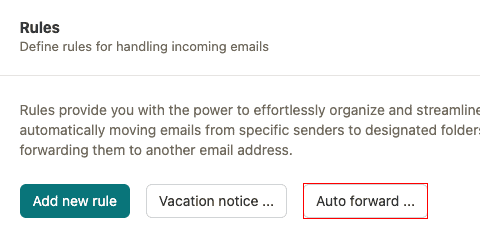
- Organize emails by creating folders or labels based on sender or domain.
This helps keep your inbox clean, organized, and easy to navigate.
Managing Your Inbox with Gmail Tools
Once forwarding is working, improve your productivity by using Gmail’s built-in tools. Useful features include:
- Labels: Categorize emails by topic, client, or priority.
- Filters: Automatically apply labels or forward emails to others.
- Starred emails: Flag important messages for quick reference.
- Search operators: Use queries like from:yourdomain.com to quickly find forwarded messages.
You can also enable desktop notifications or install the Gmail mobile app to stay updated on the go.
Troubleshooting Common Issues
While forwarding is generally straightforward, here are some problems you might encounter and how to fix them.
- Verification Email Not Received: Check your spam folder, and ensure that GoDaddy forwarding is active and correctly entered.
- Emails Not Appearing in Gmail: Double-check forwarding settings in GoDaddy. Also, make sure Gmail hasn’t created filters that archive or skip the inbox.
- Unable to Send as GoDaddy Email from Gmail: Make sure SMTP settings are correctly configured. Plus, ensure you’ve completed the verification step sent by Gmail.
If issues persist, contact GoDaddy Support or visit Google’s Help Center.
Final Thoughts
Forwarding your GoDaddy email to your Gmail account is simple, effective, and saves time. With just a few settings in your GoDaddy dashboard and Gmail account, you can centralize all communications and reduce inbox stress.
Remember to:
- Double-check your forwarding setup.
- Verify your accounts properly.
- Use Gmail tools to stay organized.
- Troubleshoot promptly if something doesn’t work.
With everything in place, you’ll spend less time switching between platforms and more time focusing on what matters.
FAQs About Forwarding GoDaddy Email to Gmail
Can I forward my GoDaddy email to another account?
Yes, you can forward your GoDaddy email to another email account. GoDaddy allows you to set up email forwarding from your domain-based email to any external email address, such as Gmail, Outlook, or Yahoo. You can configure this in your GoDaddy email settings by entering the destination email address and enabling the forwarding feature.
How do I forward a domain email to Gmail?
To forward a domain email (e.g., yourname@yourdomain.com) to a Gmail account, log in to your GoDaddy account and navigate to your email settings. Find the option for email forwarding and click “Add Forwarding.” Then, enter your Gmail address as the destination. Once saved, all incoming emails to your domain email will be automatically forwarded to your Gmail inbox.
Can I transfer a GoDaddy email to another account?
Yes, you can transfer a GoDaddy email account to another GoDaddy customer account. This process involves initiating an account change from your GoDaddy dashboard and entering the recipient’s customer ID and email address. However, note that transferring an email account may affect access, billing, and data, so it’s essential to review GoDaddy’s transfer guidelines before proceeding.
How do I forward an Office 365 email to Gmail?
To forward an Office 365 email (managed by GoDaddy) to a Gmail account, log in to your Microsoft 365 Outlook Web App. Click on the gear icon (Settings) and select View all Outlook settings. Under Mail ⟶ Forwarding, enable forwarding and enter your Gmail address. Save the changes to start forwarding emails from your Office 365 inbox to your Gmail account.