Are you thinking about moving from GoDaddy Website Builder site to WordPress? You’re not alone. Many website owners are making this switch to enjoy the numerous benefits that WordPress offers. In this guide, we will walk you through the process of migrating your site to WordPress step by step. With the right preparation and tools, the migration can be smooth and straightforward.
Benefits of Moving to WordPress from GoDaddy
WordPress is the world’s most popular content management system (CMS), powering over 43% of websites globally. This platform excels in flexibility, scalability, and customization, providing unmatched control over your website compared to GoDaddy’s Website Builder.
Notably, WordPress is available in two versions: WordPress.org and WordPress.com. We recommend transitioning to WordPress.org to take full advantage of its features, plugins, and themes library.
Switching to WordPress not only enhances your website’s functionality but can also boost its search engine optimization (SEO) potential. With a strong community and continuous development, WordPress is an excellent choice for developing a professional and robust website. Here’s a brief on its benefits:
- Flexibility and Customization: WordPress allows you to tailor your website precisely to your needs with thousands of themes and plugins.
- Scalability: Whether you’re managing a blog or a large-scale enterprise business site, WordPress grows with you.
- Control: WordPress.org offers full control over your site’s design, functionality, and hosting.
- SEO Improvement: With WordPress, optimizing your site for search engines becomes a seamless task.
- Community Support: Ready access to a vast community of WordPress developers and users ready to provide assistance and updates.
Comprehensive Guide: Is WordPress Free
Preparing for Migration from GoDaddy to WordPress
Before starting the migration, it’s crucial to prepare adequately. Here are the steps to ensure a smooth transition:
- Backup Your GoDaddy Website Builder Content: Always keep a backup of your current website. Use a tool like HTTrack to save your website files and images onto your computer. This includes all media files, pages, and other content.
- Download All Website Files: Double-check that every file has been downloaded before proceeding. This ensures that no data is lost during the transition.
- Document Link Structures: Take note of your current website’s link structure. This helps in setting up redirects later, ensuring visitors accessing old URLs are seamlessly sent to the new pages on your WordPress site.
- Extract URLs: Use an online tool like Prepostseo to extract URLs from your site and save them into a text file for easy reference later.
Steps to Migrate From GoDaddy Website Builder Site to WordPress
Here is a complete step-by-step guide that will help you move your GoDaddy site to WordPress. Let’s get started!
Step #1: Choosing the Right Hosting for Your WordPress Site
Selecting the right WordPress hosting service is crucial for the success of your WordPress website.

Here’s how to choose:
- WordPress Hosting Requirement: To run WordPress, you need a compatible web hosting plan.
- Using Existing GoDaddy Hosting: If you host your site with GoDaddy, you can install WordPress on their platform. However, for more flexibility, you might want to choose another provider.
- Recommended Hosting Providers: We suggest using DreamHost, an official WordPress.org recommended hosting service. They offer a free domain name, free SSL, and exciting discounts on their hosting plans. Other WordPress hosting services include Pressable and Hostinger, which are known for their reliability and support.
Step #2: Setting Up Your New WordPress Website
Once you have chosen a suitable hosting provider, it’s time to set up your WordPress site. Here are the steps to get your new WordPress website up and running:
WordPress Installation
Most web hosting companies offer a convenient 1-click WordPress installation feature. After logging into your hosting account, navigate to the control panel or dashboard. Look for the WordPress or website section, where you’ll find the 1-click installation button.
Follow the prompts, and within minutes, WordPress will be installed on your hosting platform. This automated process ensures everything is set up correctly without the need for manual file transfers or database setups.
Log In and Start Customizing
After installation, you will receive a link to your WordPress login page, typically “yourdomain.com/wp-admin.” Use the credentials created during installation to log into your WordPress dashboard.
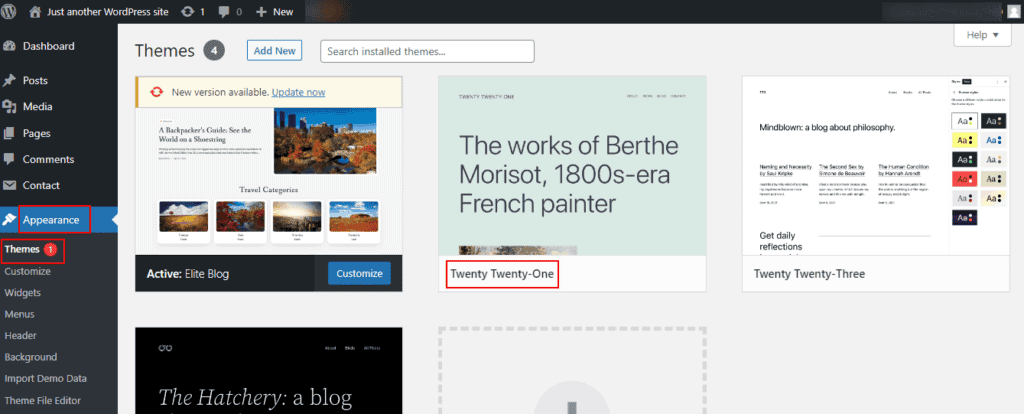
Start by choosing a WordPress theme that aligns with your brand and design preferences. WordPress offers thousands of free and premium themes, allowing you to change the look and feel of your site with just a few clicks.
Install Essential Plugins
Plugins are an integral part of WordPress, extending its functionality and features. Consider installing essential plugins such as:
- AIOSEO: It helps optimize your site content for users and search engines.
- Wordfence Security: It provides robust security measures to protect your site from malicious threats.
- W3 Total Cache: This WordPress plugin enhances site performance by caching content and improving load times.
To install WordPress plugins, head to the Plugins section in your WordPress dashboard and click “Add New.” Search for the plugins you wish to install. Once found, click Install Now and Activate to enable them.
Step #3: Transferring Content from GoDaddy to WordPress
Migrating your site’s content from GoDaddy Website Builder to WordPress involves a few key steps to ensure that everything is transferred accurately and continues to function correctly.
- Import Content: Begin by accessing your current GoDaddy site and manually copying the content. This is done by copying text, images, and other media directly from each page and pasting it into the WordPress editor.
In WordPress, navigate to the “Pages” or “Posts” section, depending on what you are transferring, and use the “Add New” option to create a new page or post. Paste your copied content into the WordPress editor, making sure to format it according to your new site’s design. WordPress’s Gutenberg block editor facilitates easy content arrangement and styling.
- Redirect Old URLs: Maintaining SEO integrity during migration is crucial. Use a free WordPress plugin like Simple 301 Redirects to set up redirects from your old site’s URLs to the new ones in WordPress. This ensures that any external links pointing to your old site will lead visitors to the correct pages on your new site, preventing traffic loss and preserving search engine rankings.
- Repeat for All URLs: Systematically go through each page and post from your GoDaddy site, transferring and redirecting them one by one. Ensuring all content is moved, and relevant redirects are created will provide a seamless experience for your users and maintain the functionality of your website.
Ultimate Guide: Joomla to WordPress Migration
Step #4: Configuring Your WordPress Site
Once your content is transferred, configuring your WordPress site correctly is essential to ensure optimal functionality and user experience.
- Set Up Permalinks: Navigate to Settings ⟶ Permalinks in your WordPress dashboard. To maintain link consistency, choose a permalink structure that matches or closely resembles what you had on your GoDaddy site. A common choice is the “Post Name” structure, which is SEO-friendly and readable for users. This consistency helps preserve your site’s SEO ranking and user familiarity.
- Configure Menus: Go to Appearance ⟶ Menus to set up your site’s navigation. Here, you can create a new menu or edit existing ones to include the most important pages of your site. Use the menu customizer to modify the layout, order, and appearance. Adjust the colors and styles to match your site’s design, ensuring a cohesive and user-friendly navigation experience.
- Create a 404 Page: A custom 404 error page is important to handle any issues with redirects. Create a new page using the WordPress editor and include helpful links and a search bar to guide visitors back to functional parts of the site. This improves user experience and ensures visitors don’t get stuck if they encounter a broken link or mistyped URL.
Step #5: Removing the Old GoDaddy Website Builder Site
Once you have successfully migrated your website to WordPress, it is important to properly retire your old GoDaddy Website Builder site to avoid confusion and ensure your domain is directing visitors to the correct location.
- Cancel and Delete Old Site: Log into your GoDaddy account and navigate to the “My Products” section. In the list of products, locate your GoDaddy Website Builder site. Click on the three-dotted settings button next to your site and select the option to “Cancel This Account.” Follow the prompts to delete the old site completely. Before doing this, make sure all your data has been successfully transferred to WordPress.
- Point Domain Name to WordPress: To ensure users are redirected to your new WordPress site, update your domain’s nameservers. Go to your domain management area in GoDaddy and change the nameservers to those provided by your new WordPress hosting provider. This update directs all traffic from your domain to your newly set up WordPress site, ensuring a seamless transition for your visitors.
Step #6: Finalizing the Migration
Completing the migration process involves ensuring that every aspect of your new WordPress site is functioning correctly, providing your visitors with a seamless experience.
- Test All Links: Rigorously check each link before making your site live. Navigate through menus, posts, and pages to ensure all internal and external links work as expected. Verify that all redirects from your old site are properly set up to lead visitors to the correct pages on your new site.
- Disable Maintenance Mode: If you used a maintenance mode plugin during the setup, it’s time to disable it. This will make your WordPress site accessible to visitors and search engines.
- Verify Content and Redirects: Conduct a thorough review of your site to ensure all content has been transferred correctly. Check that text, images, and other media appear as intended. Confirm that all redirects are functioning properly, steering users from old URLs to the appropriate new ones on your WordPress site.
- Check for Broken Links: Use a tool like the Broken Link Checker plugin to scan your site for any broken or missing links. Fix any issues promptly to maintain a professional appearance and improve SEO.
Step #7: Launching Your New WordPress Site
With all preparations completed, it’s finally time to unveil your new WordPress site to the world. Here’s how to execute a successful launch and maintain the site’s momentum:
- Go Live: Remove any maintenance page or holding screen to make your site publicly accessible. Announce the launch to your audience via email or a newsletter, inviting them to explore the updated version of your site.
- Share and Promote: Leverage your social media channels to spread the word about your new site. Share links, highlight key features, and engage with your audience to attract traffic. Consider creating promotional content, such as blog posts or videos, to generate buzz and encourage sharing.
- Monitor Performance: Use analytics tools like Google Analytics to track visitor behavior, page views, and interactions. Monitoring these metrics helps you understand user engagement and identify potential areas for improvement.
- Continuous Improvement: Regularly update both your content and your design to keep them fresh and engaging. This ongoing effort helps retain visitors and improves SEO. To ensure consistent growth and stability, consider investing in a WordPress website retainer plan. This includes regular backups, security updates, and technical support, allowing you to focus more on content and user interaction while maintaining a secure, efficient site.
Also read: Top Tips to Outsource WordPress Site Migration
Conclusion
Migrating from GoDaddy Website Builder to WordPress can open up a world of opportunities for your online business. By following this guide, you’ll take advantage of WordPress’s vast resources and flexibility, creating a more dynamic and SEO-friendly site.
Though the migration process involves several steps, careful planning and execution ensure a seamless transition. Remember to continuously monitor and enhance your site to achieve the best results. Connect with us if you need professional help with the migration.